

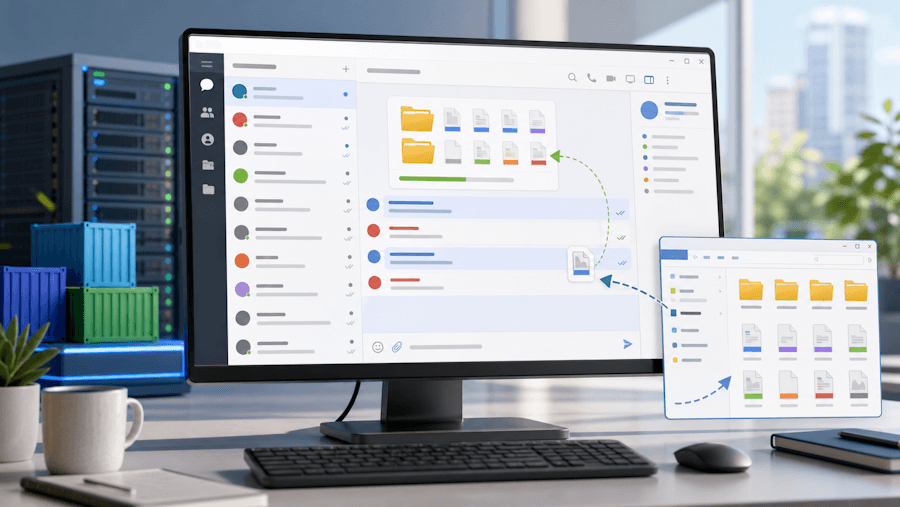
MyChat now covers two very practical tasks: the server is now available for Linux/Docker, and in addition, it has become easier to send not just files to the chat, but entire folders in one message.
Docker is important for administrators and companies that want to manage server infrastructure in a Linux environment. And the "file sharing upgrade" is immediately noticeable for regular users: there is no longer a need to split a folder into dozens of adjacent messages or create archives, when you need to transfer the structure of a project, a set of documents, photos, or archives of working materials.
- Production-ready Docker image of MyChat Server for Linux
- Sending files and folders to a chat in one package
- Drag-and-drop files and images from chat to Explorer and other applications
- Sending files from Explorer via "Send to" -> "MyChat"
- Full list of changes + development history
- How to update to the latest version?
1. Production-ready Docker image of MyChat Server for Linux
The main infrastructure news is the compiled production-ready Docker image of MyChat Server for Linux.
This is a major milestone for MyChat. The server was usually installed in a Windows environment, and this remains a normal working option. But for many companies, server infrastructure has long run on Linux: virtual machines, containers, separate VPSes, their own update and monitoring policies.
It is not always possible to use Windows for a server or virtual machine. The issue of OS licensing is also important.
Now you can quickly deploy MyChat Server via Docker:
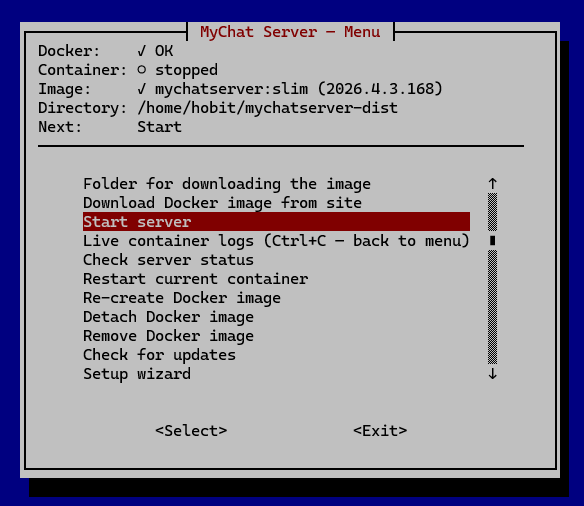
The Docker image enables a much more familiar workflow for system administrators: to deploy the server in a container environment, manage the environment with standard Linux tools, and more easily fit MyChat into the existing infrastructure.
Details on deployment, supported scenarios, and limitations will be published separately.
Instructions for installing MyChat on a Linux server or virtual machine
2. Sending files and folders to a chat in one batch
You can now send any number of files along with folders to a chat. Internally, we call this a file bundle: a neat package that stores a set of files and a folder structure.
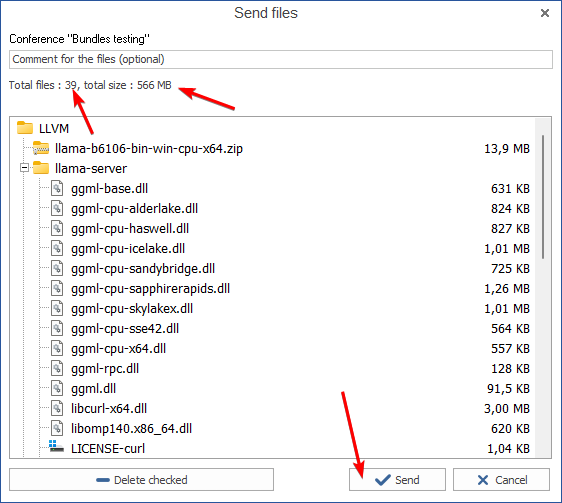
This is convenient in common work situations, to avoid turning the chat into an endless stream of separate files:
- send a folder with project documents;
- send a photo report with attached folders;
- send a set of logs, screenshots, and configuration files;
- quickly send materials without prior archiving.
The user selects files and folders, MyChat collects them into one package, and sends them to a private dialogue or conference. It is easier for the recipient to understand that this is one connected set, and not a random scattering of attachments:
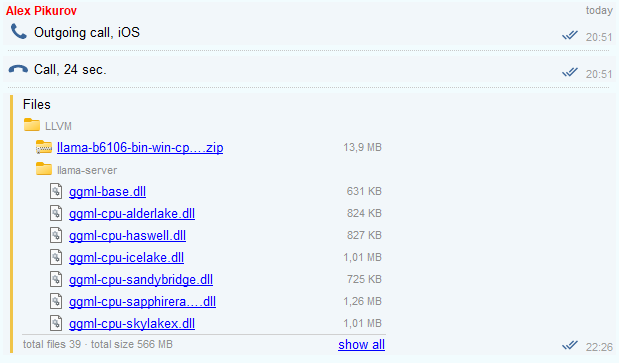
The program supports downloading (in both directions: download and upload). In addition, you can upload something to the server simultaneously, in several dialogues.
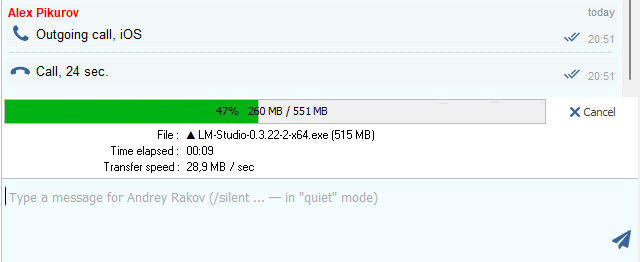
If the connection suddenly drops or the computer turns off while uploading folders with files, don't worry, MyChat will figure it out and continue uploading files after reconnecting. Even if there are several hundred of these files and folders.
3. Drag-and-drop files and images from chat to Explorer and other applications
Now you can drag and drop files and images from a chat directly into Windows Explorer or other programs.
This is one of those features that feels completely intuitive. You receive a document, picture, log, or file from a colleague in a chat — drag and drop it in the desired project folder. For example, to insert an image into Paint.NET, a letter into Outlook, a report into Word, or a project into Davinci Resolve. Just drag the document from MyChat to where you need it now, and that's it.
Previously, for this action, you usually had to open the menu, save the file, look for the download folder, then open the file again in the desired program. Now the path is shorter: the chat becomes a normal source for other programs and the Windows desktop.
4. Sending files from Explorer via "Send to" -> "MyChat"
The reverse direction has also become easier. If the user is already in Windows Explorer and sees the files they need, they can send them to MyChat via the context menu
Right mouse button -> "Send to" -> "MyChat":
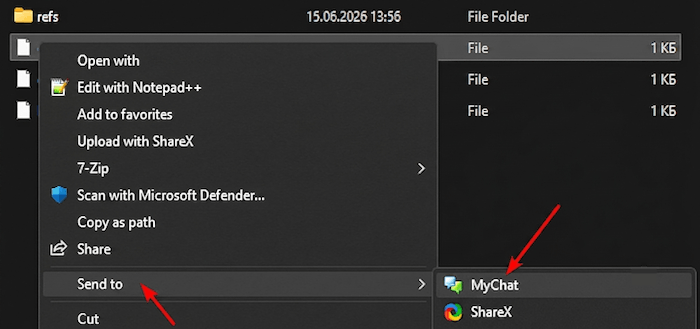
This is convenient when a person works not from the chat, but from the file system: in the client folder, in the project directory, next to logs, screenshots, contracts, invoices, photos, or reports.
You don't need to first open MyChat, search for the desired dialogue, click the attachment button, and select the same files again. The files are sent from the place where the user is already working.
5. Full list of changes + development history
Development history with developers' comments
MyChat Client
[+] (win32) drag&drop files and images from chat -> to Explorer and other programs;
[+] (win32) sending any number of files with folders to chat (so-called bundles);
[+] (win32) sending files from Explorer to MyChat by right-clicking, "Send" -> "MyChat";
[*] (win32) detection of microphone activity during calls and green indication of the icon in the voice call window and the call with screen sharing;
[*] (win32) automatic cleaning of old database backups, which are made with each client update, to prevent disk clutter;
[-] (win32) error ID: 79A60AA8, sometimes occurred when switching between private and conference dialogues;
[-] (win32) if the last message in a conference or private dialogue was deleted, the sender's nickname remained in the chat text. Fixed;
[-] (win32) correct handling for the "Call failed due to technical error #106" error if it occurs on the remote end;
MyChat Server
[+] (core) built working Docker image of the server;
[*] (setup) compatibility of the built-in NodeJS web server with older operating systems below Windows 10/Windows Server 2016;
[-] (core) after updating some servers, automatic indexing of the full-text search database was not enabled (server console command "fts enable"). Fixed;
[-] (core) error ID: 25C77958 ([FireDAC][Phys][SQLite]-326. Cannot perform the action because the previous action is in progress). Sometimes, when shutting down the server, an error could appear while saving data, fixed;
[-] (admin) fixed call statistics calculation (the number of attempts was counted, not the total time). Fixed.
6. How to update to the latest version?
Both commercial and free versions are updated in the same way. The server is updated first, then the clients. In general, this process is performed automatically.
