

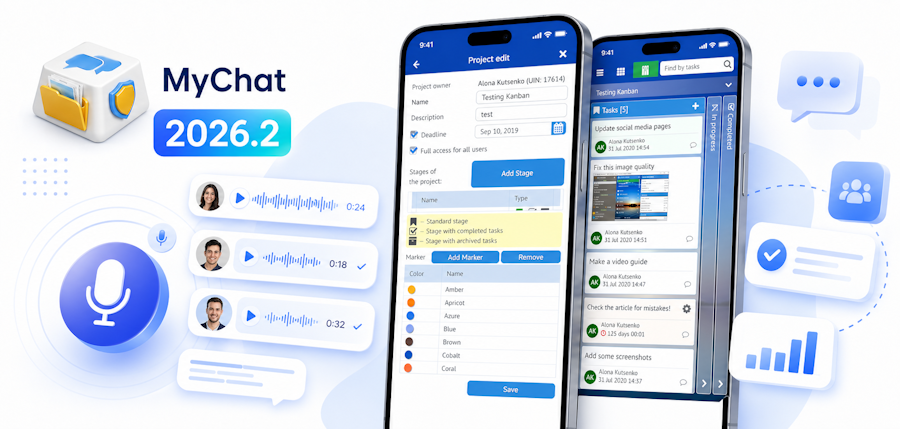
The new version of the MyChat corporate messenger, 2026.2.0, has been released. In this update, we continued to develop Kanban, added voice messaging to new clients, improved calls in the Windows client, and made several server-side improvements for administrators.
The main focus of this version is working from your phone. Tasks, comments, files, and voice messages are now more convenient to use when you don't have a computer with you: when travelling, in the workshop, in the warehouse, or while visiting a client.
- Kanban on smartphones
- Voice messages
- Calls in Windows client
- Quick reactions to messages
- Server: WatchDog, CSV and certificates
- Optimizations and fixed bugs
- Full list of changes + development history
- How to update to the latest version?
1. Kanban on smartphones
MyChat's built-in Kanban is now optimized for smartphone use. This is useful for employees who don't spend all day at their desks: field engineers, technical support, managers, warehouse workers, installers, and service teams.
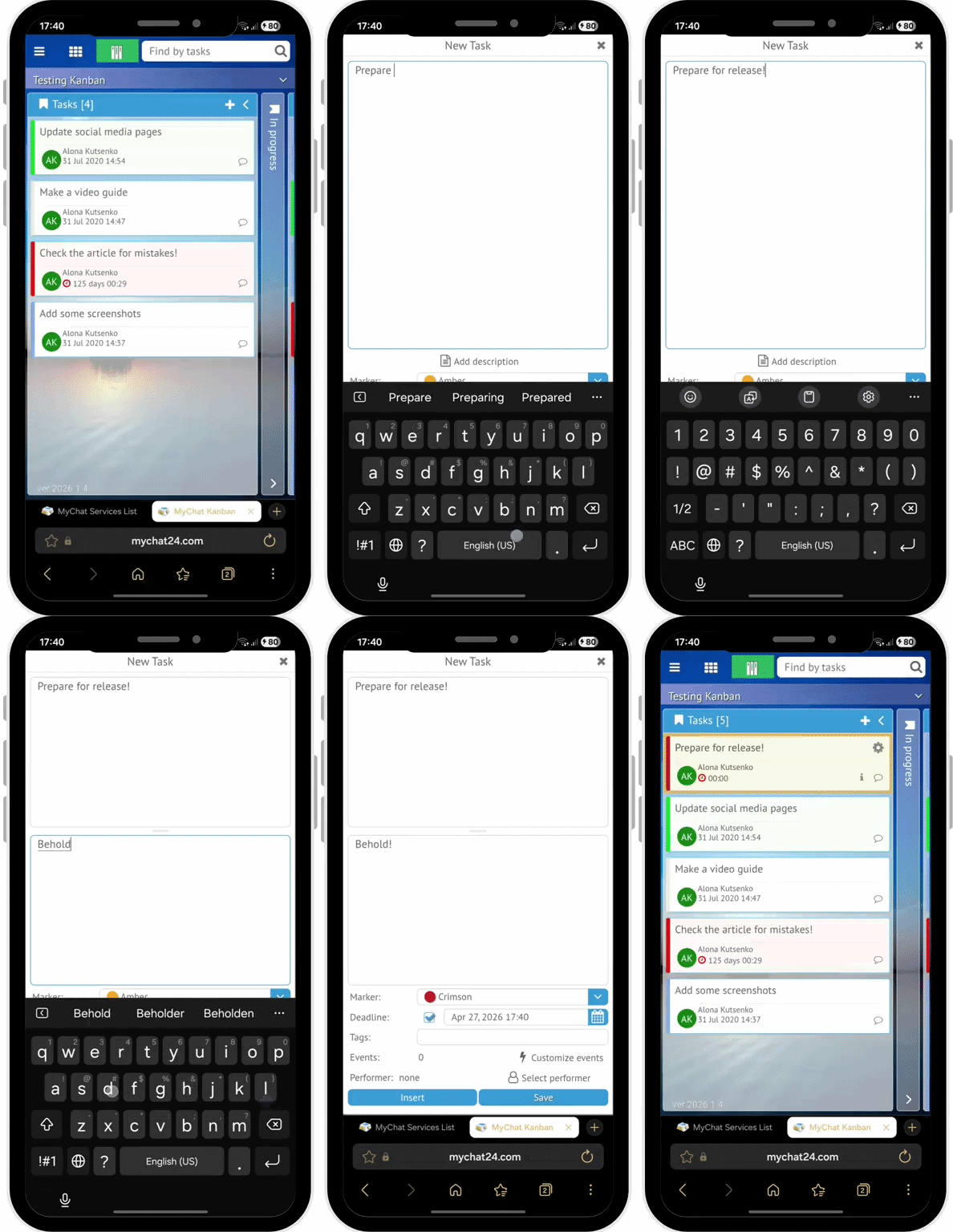
You can open a task from your phone, view the description, clarify details, add a comment, or attach additional information. Work doesn't stop just because you've stepped away from your computer.
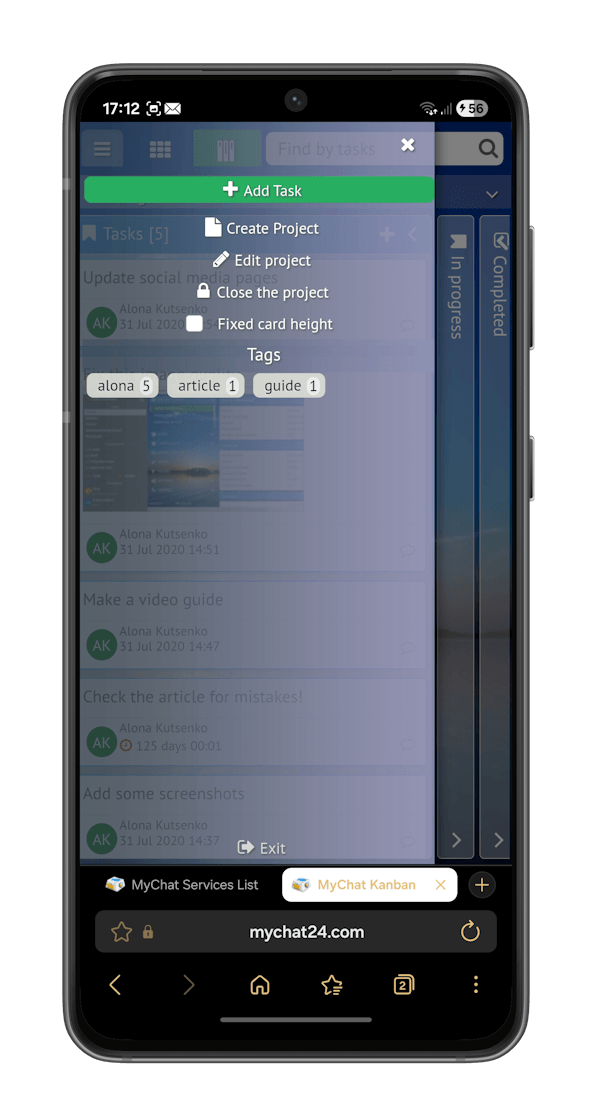
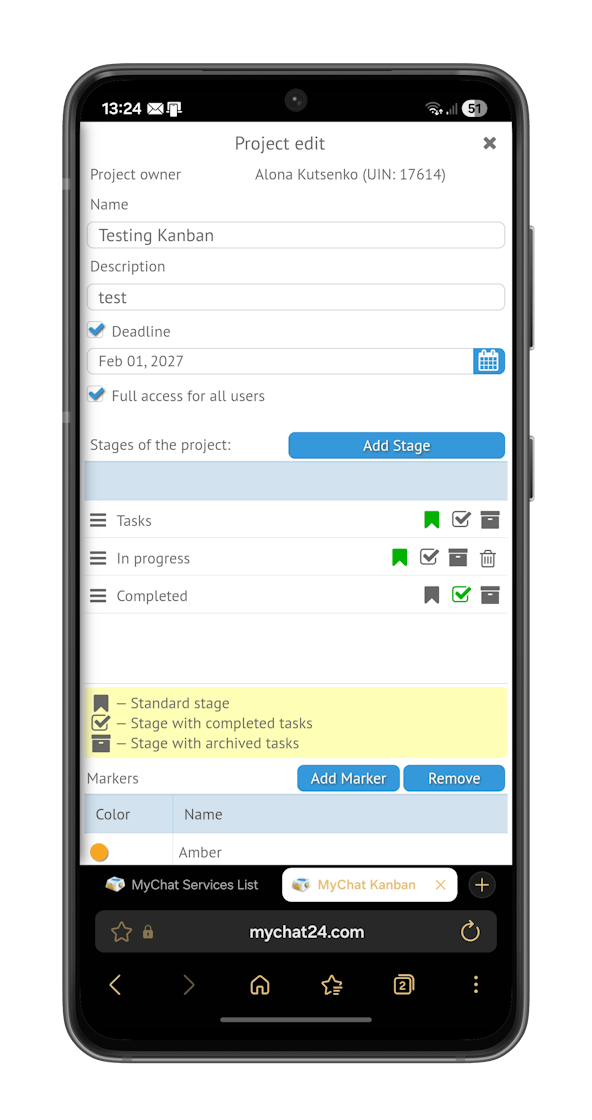
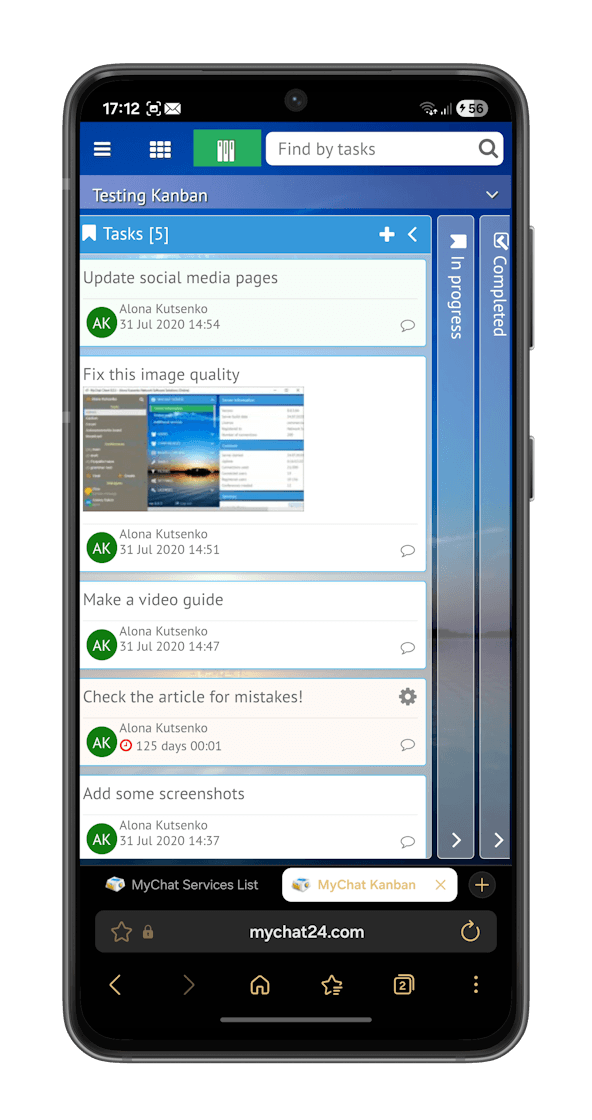
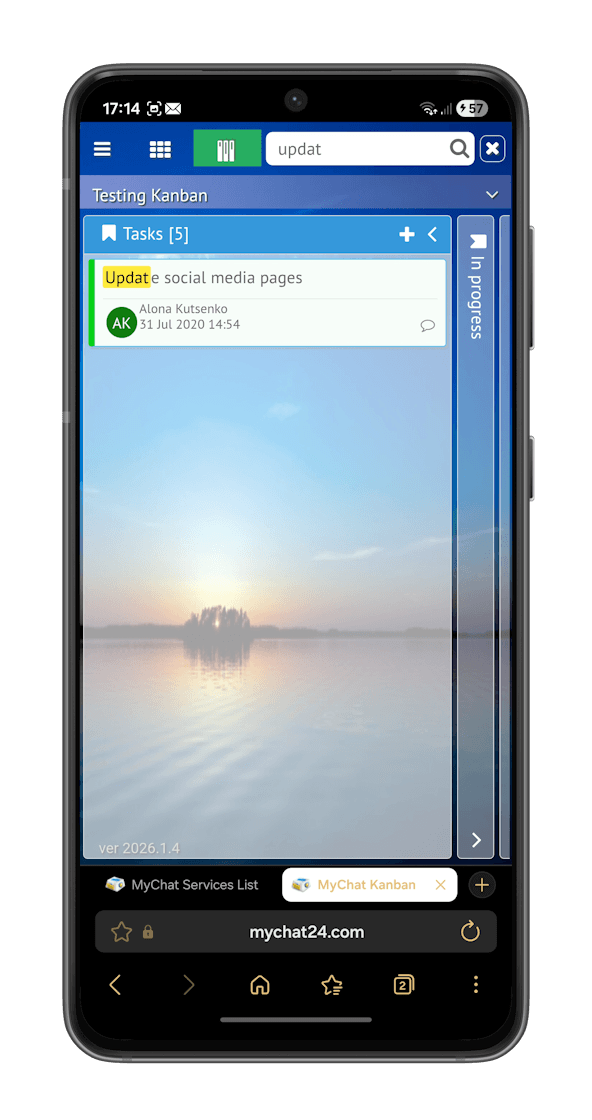
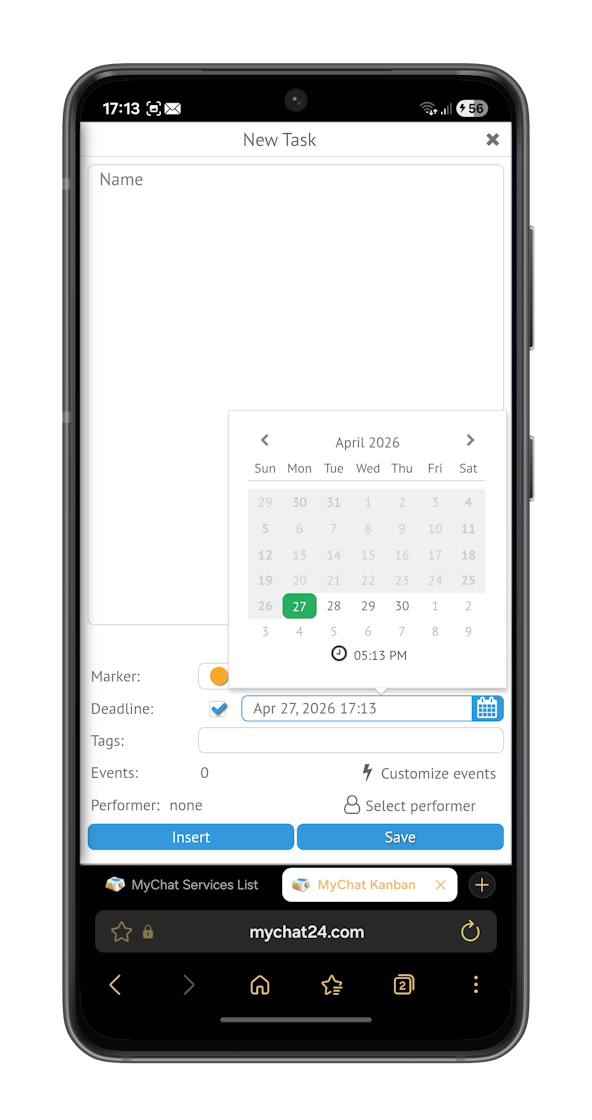
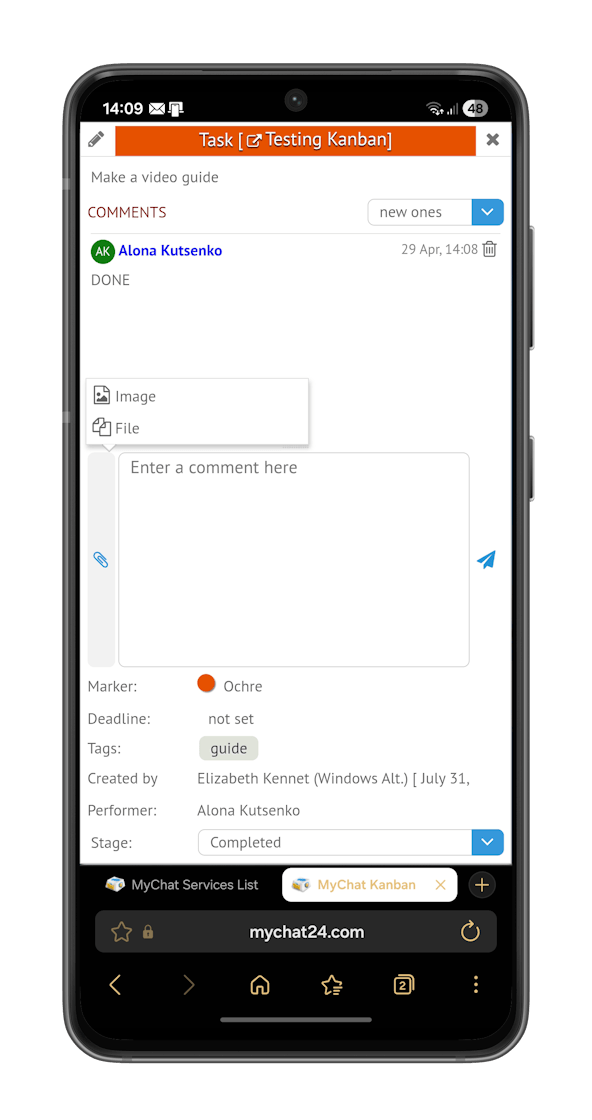
For companies that already use MyChat as an internal communication and task management system, this is especially convenient. Chats, files, discussions, and Kanban project management run on their own server, without external cloud storage.
2. Voice messages
MyChat 2026.2 now supports voice messaging in new clients: macOS, Linux, WEB, and an alternative client. This is convenient when dictating a long text is faster than typing it.
Voice messages can now be added to Kanban tasks. For example, a manager can quickly leave a clarification on a task, a task performer can clarify a detail, and a field worker can send a comment directly from their phone.
Voice doesn't replace a text description of a task, but it's useful when you need to quickly explain a certain detail or convey intonation.
For those who find voice messages annoying, we're working on automatic transcription (voice-to-text) that will be available in one of the next releases.
3. Calls in Windows client
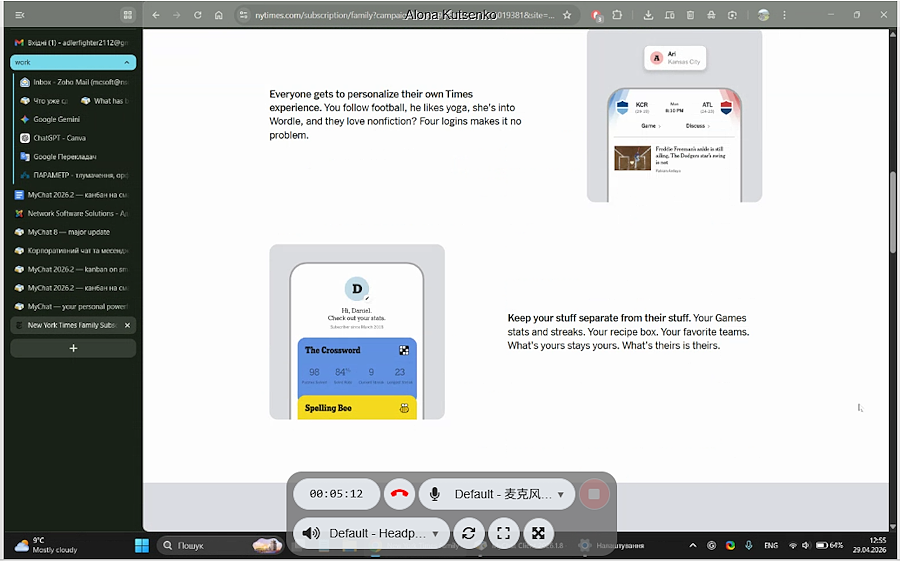
The call window has been improved in the Windows client. The call panel can now be minimized and maximized, and you can move the video or screen sharing window by any visible part using the mouse:
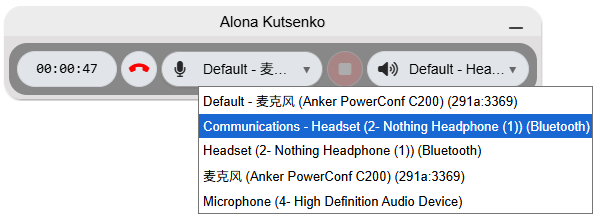
You can now also select your audio output device directly during a call. You can quickly switch from speakers to a headset or select a different audio output without restarting the call:
If you regularly use phone calls as we do, you'll definitely appreciate these changes. They really help your work and add comfort and convenience.
4. Quick reactions to messages
We've implemented a technology for setting quick reactions to the last sent message in chat using short text messages like "+" / "++", "-" / "--", "*".
The chat settings now include an option to "Allow reactions to messages using short text messages +, -, !, *...":
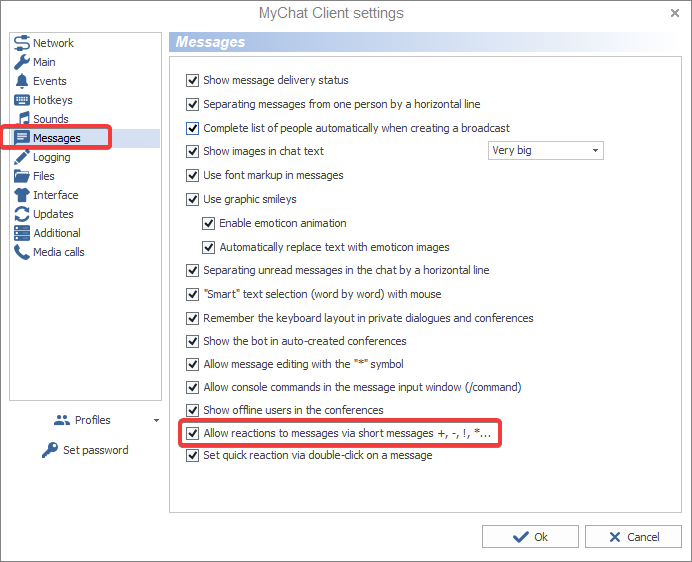
It's enabled by default. Set one of the standard reactions from the list:

...you don't have to aim your mouse at a message in the general chat text. You can simply send a short text message and respond with one of the preset quick reactions:
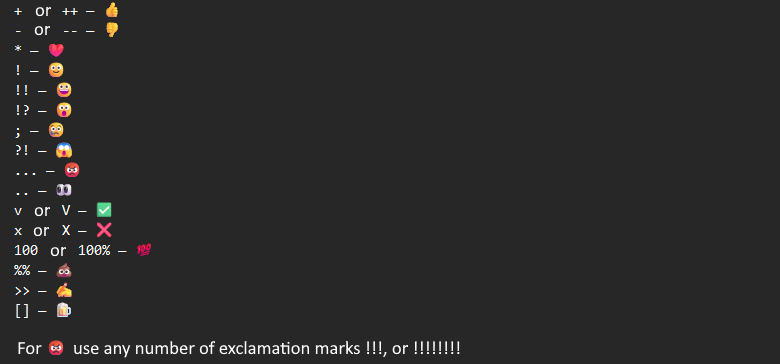
A short reaction should be the only content of the message. If there are extra characters or spaces at the beginning or end, it is considered a regular message.
And if you simply double-click on any message field, it adds "Thumbs Up" reaction automatically.
5. Server: WatchDog, CSV, and certificates
MyChat Server now features WatchDog technology. It monitors server status and keeps records of the resource data, including memory, threads, resource allocations, and resource releases.
If DEBUG or TRACE logging is enabled, the text log is saved to the file.C:\ProgramData\MyChat Server\logs\watchdog.log
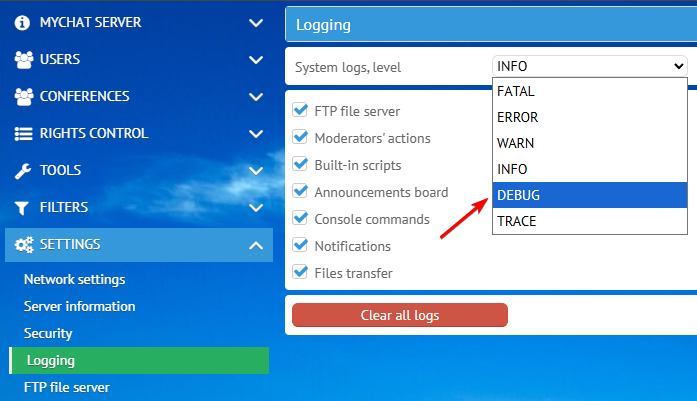
WatchDog helps you troubleshoot server instability, increased memory consumption, or suspected resource leaks.
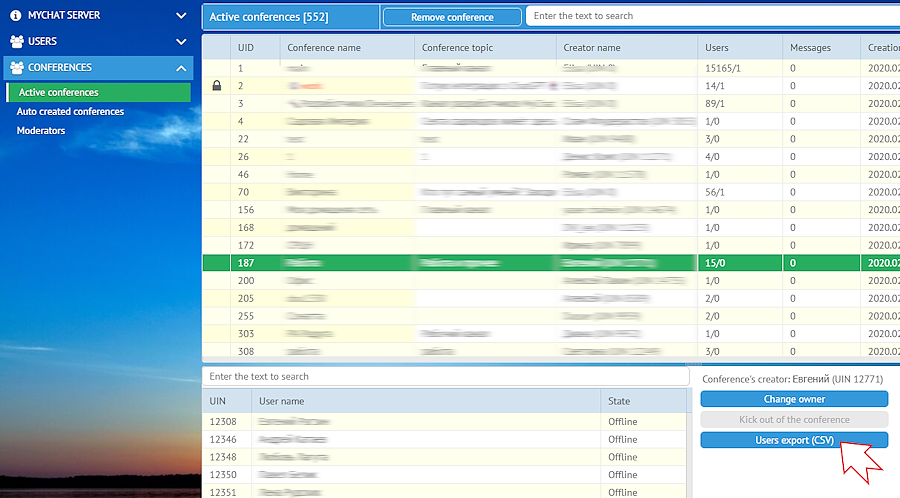
Another useful change is the ability to export the user list of a working conference to a CSV file. This is useful for reports, audits, and manual data processing:
We've also simplified the process of working with HTTPS certificates in the "Settings" → "WEB Services" section. Configuring web services became easier.
6. Optimizations and fixed bugs
The Windows client now launches noticeably faster. "Cold" startup has been reduced by approximately 9-10 seconds due to new localization technology. Memory consumption has also been reduced: application windows are now created on demand, rather than immediately upon program launch.
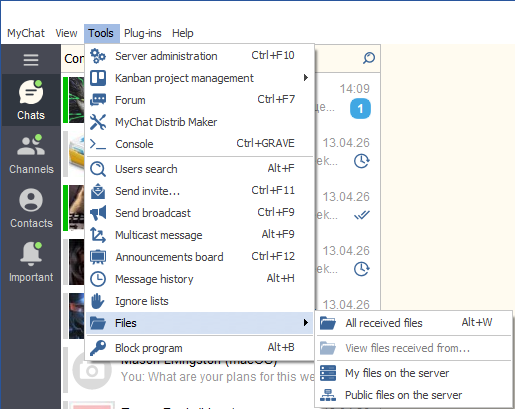
The list of received files in chat is now generated more quickly. This is noticeable on clients who have accumulated large amounts of documents, archives, and images over time:
Updated protection for the built-in web server against file re-caching. Improved resolution pre-detection for BMP, TIFF, PSD, PCX, and TGA images to generate preview thumbnails in chat more accurately.
A bug in the network attack protection tool has been fixed. It could cause the client application (most often the admin panel) to shut down when receiving large amounts of data.
In the Windows client, fixed freezes, errors when sending images and files, issues exiting the application, incorrect calculation of history sync percentages, and a file saving error on a newly installed client.
7. Full list of changes + development history
Development history with developers' comments
MyChat Client
[+] (mac,linux,web,alt) implemented sending voice messages;
[+] (win32) option "Set quick reaction via double-click on a message";
[+] (win32) technology to set quick reactions on the last sent message via short text messages like "+" / "++", "-" / "--", "*", etc;
[*] (win32) in the sound settings, the event list now always has a selected element to avoid confusion when an element is not in focus, and the "Play" or "Edit" button does not respond;
[*] (win32) button for collapsing and expanding the call panel;
[*] (win32) now the video/screen sharing call window can be moved with the mouse by grabbing any visible part of the window;
[*] (win32) select audio output device at the same time when making a call;
[*] double-clicking on empty message place now is considered as "quick reaction"; if a mouse is placed on a text, then a word will be highlighted, but without reaction;
[*] (win32) reduced the number of network requests to the server that deal with user information updates, especially on large servers;
[*] (win32) increased speed for the list of received files in the main menu;
[*] (win32) increased speed of the application "cold start" (~ 9-10 seconds) with a new localization technology;
[*] (win32) reduced memory consumption by creating different application windows "by demand" and not during launch;
[-] (win32) clicking on links to the built-in Kanban and forum in the chat didn't work correctly if alternative aliases for these services were configured on the server. Logging in to the service via token wasn't working, requiring manual login and password entry. Fixed;
[-] error in calculating percentages and the preliminary time for full history synchronization; in some cases, the indicators could go beyond 100% and into negative time. Fixed;
[-] error occurred sometimes after sending images or files in the chat;
[-] minor errors that occurred when exiting the application;
[-] (win32) the program freezes randomly. Fixed.
[-] (win32) fixed error when saving a file on the newly installed MyChat;
MyChat Server
[+] (admin) option to export the user list of the working conference in CSV;
[+] (core) implemented a WatchDog technology for tracking the server by time: memory size, how many threads and resources are allocated or free, log records for tracking dynamic;
[+] (kanban) added option to insert voice messages in tasks;
[*] (admin) simplified work with HTTPS certificates in the section "Settings", "WEB services";
[*] finished preliminary resolution detection for BMP, TIFF, PSD, PCX, and TGA images to generate preview thumbnails in chat;
[*] (node) protection against re-caching of files on the web server;
[*] (core) limiting the size of the outgoing buffer for each client's data. If this limit is exceeded, the system terminates the connection. This is done for security measures.
[-] an error in the network attack prevention tool caused the client application (primarily the admin panel) to shut down when receiving large amounts of data. Fixed.
8. How to update to the latest version?
Both commercial and free versions are updated in the same way. The server is updated first, then the clients. In general, this process is performed automatically.
